
NOLVA Reactor Mechanical All-Button Arcade Controller for PlayStation®5, Windows PC - FAQ
Below are frequently asked questions and troubleshooting tips for users of the NOLVA Reactor Mechanical All-Button Arcade Controller for PlayStation®5, Windows PC.
-Table of Contents-
Please select a topic below
Functionality
The product does not work properly.
The (PS) button does not respond when pressed
The connection becomes lost intermittently
The product's firmware update fails to complete successfully
Specifications and Features
Can I use a switch other than the included one for the custom button?
Can the product be connected and used with hardware platforms other than PlayStation®5 or PC?
The product does not work properly
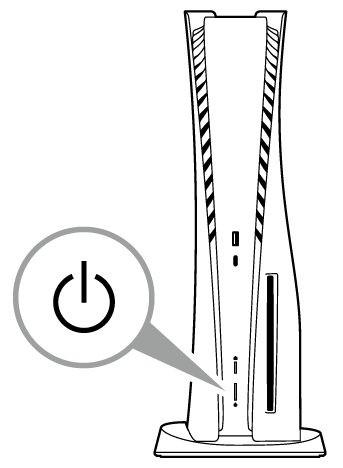
The PlayStation®5 / PlayStation®4 console will not turn on when you press the (PS) button, or the console will not exit rest mode
Due to the specifications of this product, the PlayStation®5 and PlayStation®4 consoles will not turn on even if you press the (PS) button. It also cannot be used to exit rest mode on the PlayStation®5 and PlayStation®4. To turn on the power, first connect this product and then press the power button on each hardware console.
For PlayStation®5 → Press the power button on the PlayStation®5 console, or press the (PS) button on the DualSense® wireless controller that is paired to the PlayStation®5 console .
For PlayStation®4 →Press the power button on the PlayStation®4 system, or press the (PS) button on the wireless controller (DUALSHOCK®4) that is paired with the PlayStation®4 system .
The (PS) button does not respond when pressed
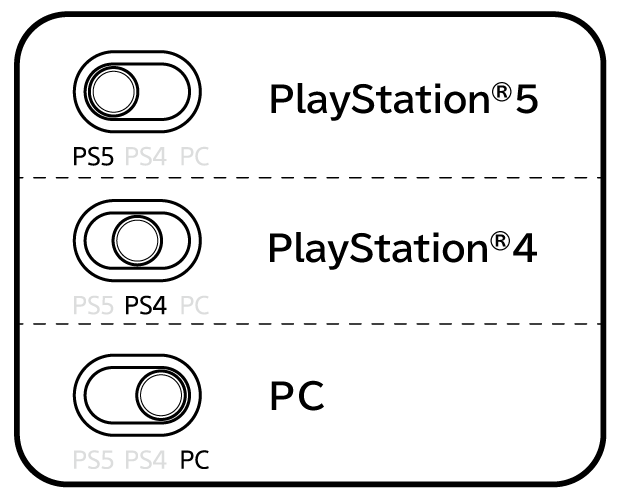
① Please set the hardware switch to the appropriate position before connecting the product to the hardware.
Changing the switch while the product is connected may cause unexpected behaviour.
1. This product cannot be used on the initial setup screen immediately after purchasing the PlayStation®5 or PlayStation®4, or when all settings in the PlayStation®5 or PlayStation®4 have been initialized.
For PlayStation®5, use the DualSense® wireless controller to perform the initial setup.
For PlayStation®4, use the wireless controller (DUALSHOCK®4) to perform the initial setup.
2. Update the system software of the PlayStation®5 and PlayStation®4 to the latest version.
② Please make sure that the Key Lock switch is set to the image position.
If it is set to the image position, some button functions will be unavailable. For example, the (PS) button may not function.

The connection becomes lost intermittently
Please check that you are not using a USB hub or extension cable.
- Please check that the USB plug is securely connected to the hardware you are using.
- If you are using an extension cable, the connection may be interrupted. Please connect this product directly to each hardware unit.
- Also, do not use this product through a USB hub. This product may not work properly.

The assign (button mapping) function does not work properly, or the extended button gets stuck in the "pressed" state
**・For the expansion buttons, make sure the switch is inserted fully and in the correct orientation.**
**※ If the switch is not inserted fully, a button may remain pressed, which can prevent the Assign (button assignment) function from operating correctly.**

After checking the switch status, please try the assignment again shown on page 9 of the manual.
The product's firmware update fails to complete successfully.
If the firmware update does not work, click here. Please try the method on this page.
Can I use a switch other than the included one for the custom button?
Although switches of the same specification can be installed, their operation is not guaranteed. Please check the size of the switch and the number and position of its terminals before installation.
Can the product be connected and used with hardware platforms other than PlayStation®5 or PC?
This product can only be used with PlayStation®5, PlayStation®4, and PC (Windows 11).
For PC use, please ensure that your PC is running Windows 11.
Portable PCs and virtual PCs are not supported.
When the issue is not resolved through troubleshooting
Please contact us through our customer support page if the issue persists.
The actual product may differ slightly from the photographs and illustrations shown.
Please note that the specifications and appearance of this product are subject to change without notice for improvement purposes.
 , “PlayStation”, “PS5”, “PS4”, “DualSense”, and “DUALSHOCK” are registered trademarks or trademarks of Sony Interactive Entertainment Inc.
All other trademarks are the property of their respective owners.
Manufactured and sold under licence from Sony Interactive Entertainment Inc. or its affiliates.